// 01 · INTRODUCTION
1. Introduction
1.1. What is Inputize
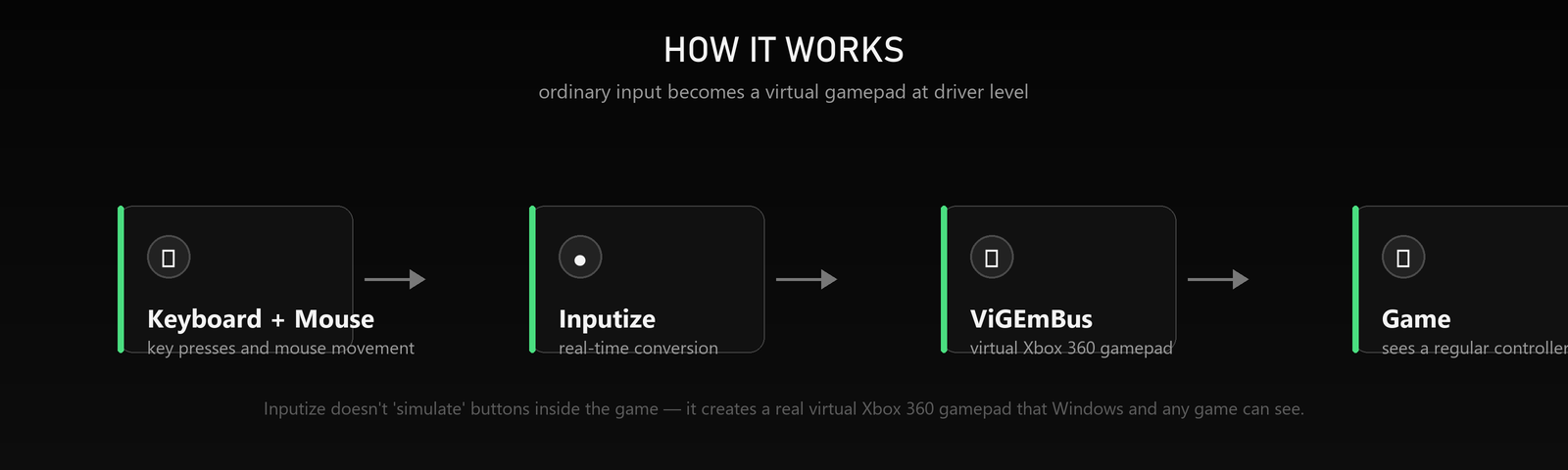
Inputize is a gamepad emulator for Windows. The program reads keyboard presses and mouse movement and turns them into the signals of a real virtual Xbox 360 gamepad created at driver level on the ViGEmBus bus. To the game, the anti-cheat and Windows itself this is an ordinary connected controller — the program does not “push buttons” inside the game and does not touch its memory.
You play with a keyboard and mouse while the game thinks a gamepad is connected: Xbox button prompts appear, the built-in aim assist works, and the control scheme adapts to a controller.
1.2. Key features
- Button mapping — every gamepad button can be bound to any key or mouse button, with Normal / Hold / Toggle / Turbo / Double / Combo / Trigger / Macro modes (macros = timed sequences of gamepad presses).
- Mouse → right stick — mouse movement is converted into an analog stick in real time: sensitivity, response curves, smoothing, boost.
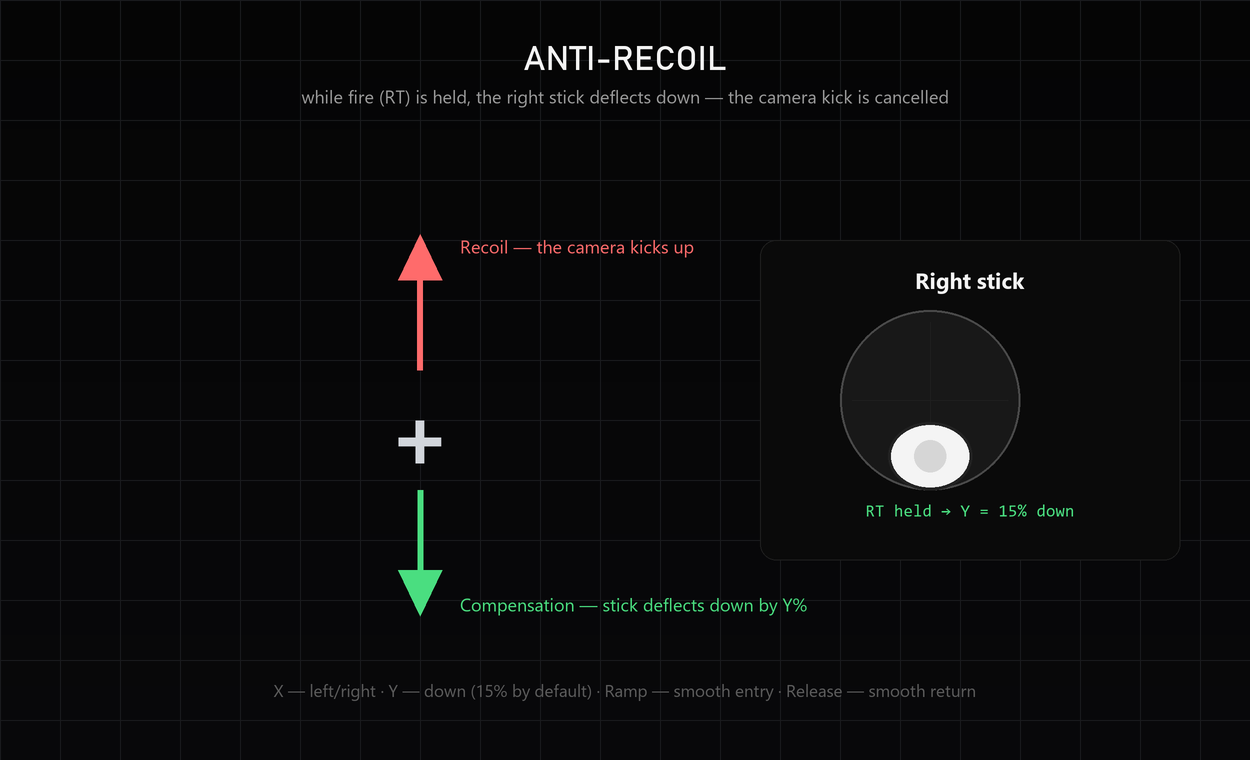
- Anti-Recoil — while fire (RT) is held, the right stick smoothly deflects down and cancels the camera kick.
- Aim-Assist Engine — stick-signal shaping that makes the game apply its built-in aim assist more strongly (Warzone and similar shooters).
- SAB humanized ramps — Movement SAB (WASD) and Aiming SAB 2 (aim) replace machine-perfect stick edges with eased human curves plus per-gesture variance (section 8.5).
- Auto ping & YY spam — one-key per-game tricks: ping once per trigger pull and double-swap to cancel animations, both pre-configured in game templates (section 8.7).
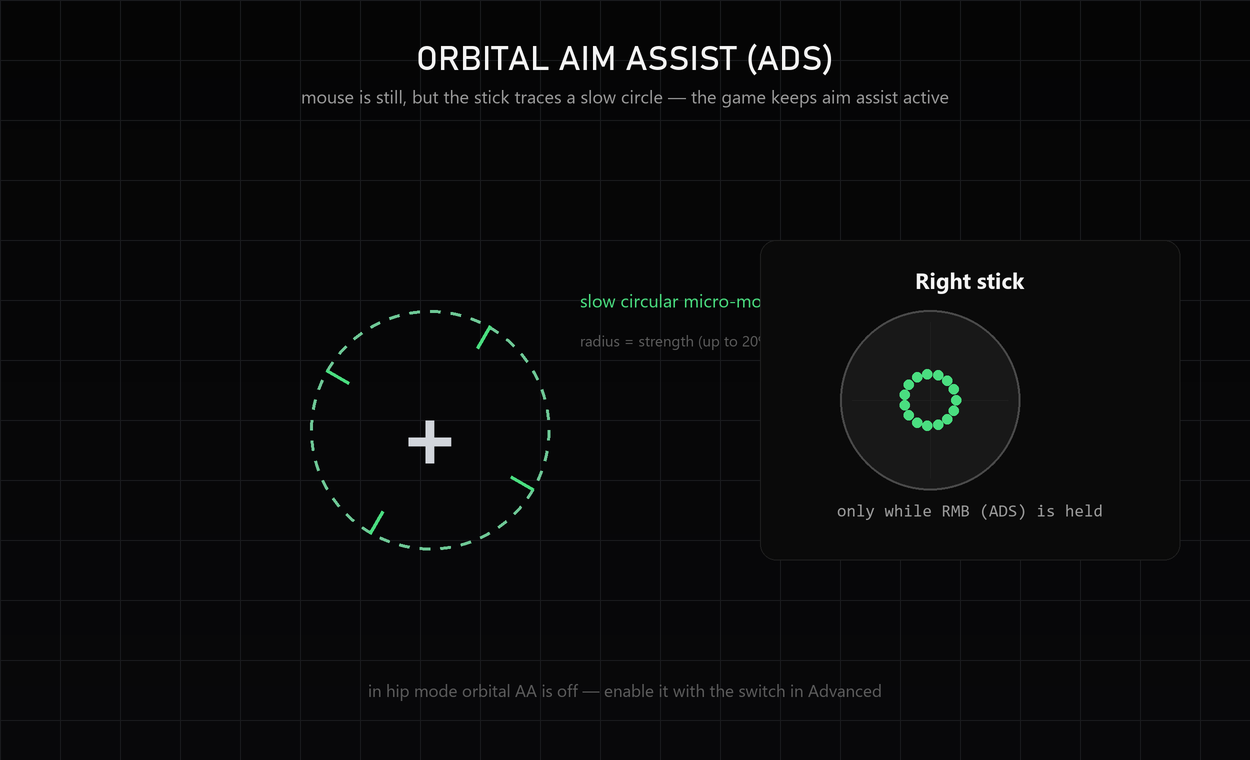
- Orbital Aim Assist (ADS) — with RMB held and the mouse still, the stick traces a slow circle so the game never “drops” the aim assist.
- Profiles — unlimited sets of settings, switching with F9/F10, sharing via Copy/Paste Code, auto-applied by the running game.
- Overlay & tray — a transparent window over the game and control from the system tray without opening the main window.
- Global hotkeys — F8, F9, F10, F6 work even while the game is in focus.
1.3. System requirements
| Component | Requirement |
|---|---|
| OS | Windows 10 or Windows 11, 64-bit |
| Driver | ViGEmBus (installed automatically on the first launch, one click) |
| File | a single executable Inputize-Emulator.exe (~220 MB); Python is not needed |
| Mouse / keyboard | any HID-compatible devices |
| Internet | only for license activation and update checks |
// 02 · INSTALLATION & ACTIVATION
2. Installation & Activation
2.1. Installing the program
- Download
Inputize-Emulator.exefrom the Google Drive link in your purchase email — it arrives together with your activation key right after payment. - Run it with a double click. Windows SmartScreen may warn about an unknown publisher — click More info → Run anyway. This is normal: the file is unsigned, while the ViGEmBus driver itself is Microsoft-signed.
- On the first launch the program offers to install the ViGEmBus driver — press the install button and confirm the UAC prompt.
- If Windows asks for a reboot after the driver install — restart the computer and run the program again.
- A desktop shortcut is created automatically (it can be disabled in Settings).
2.2. License activation
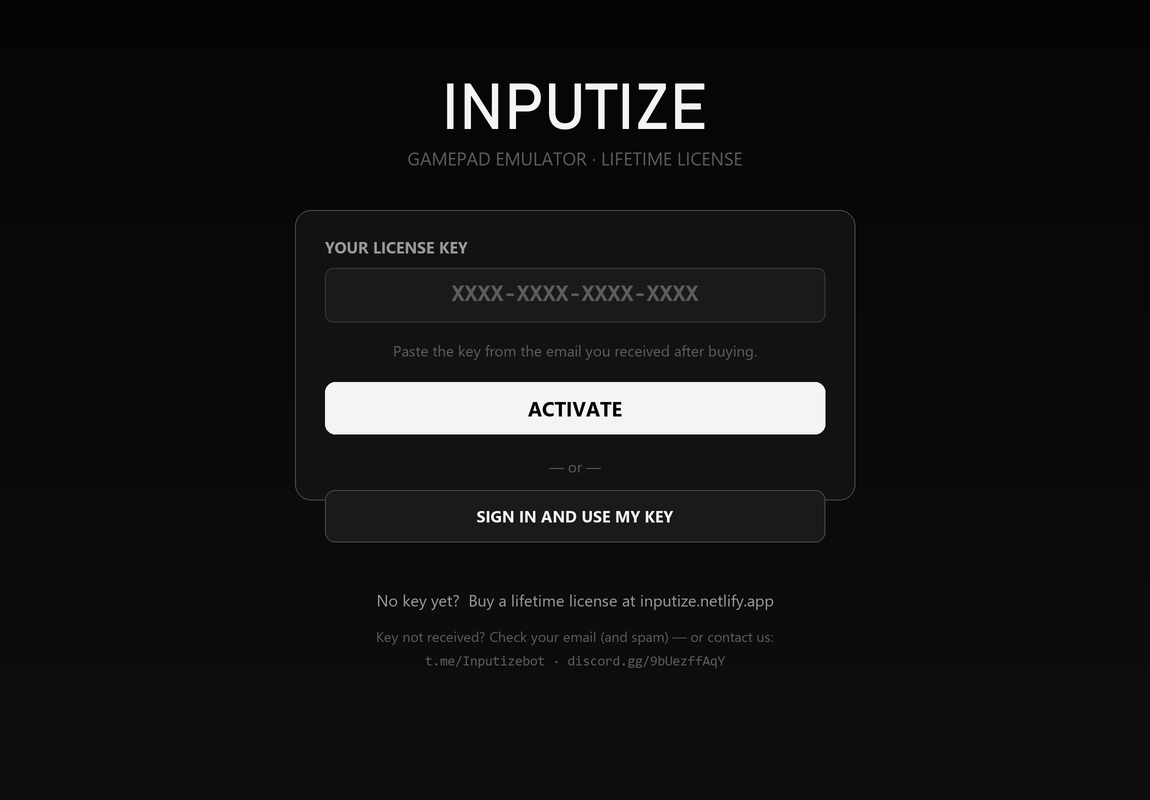
Inputize is a paid program with a lifetime license. On the first launch an activation window opens with two ways to unlock it:
- Paste a key — enter the key from the email you received after paying (or the key bound to your account at inputize.pro) and press ACTIVATE.
- Sign in and use my key (SIGN IN AND USE MY KEY) — enter your Inputize account email and password; the program shows the keys bound to the account and you pick one. The password is never saved.
After a successful activation the key is cached in %APPDATA%\Inputize\license_emulator.json, and the program works offline — no internet required afterwards. Emulator and filter (RC Filter) keys are not interchangeable: each product has its own key.
2.3. First run
On the first launch the program opens the main window, checks the ViGEmBus driver in the background and offers to install it with one click if it is missing (confirm the UAC prompt). The default FPS profile is created automatically, and a tray notification reminds you: press F8 to activate. No separate setup wizard — everything happens in the main window.
// 03 · INTERFACE OVERVIEW
3. Interface Overview
3.1. Window header
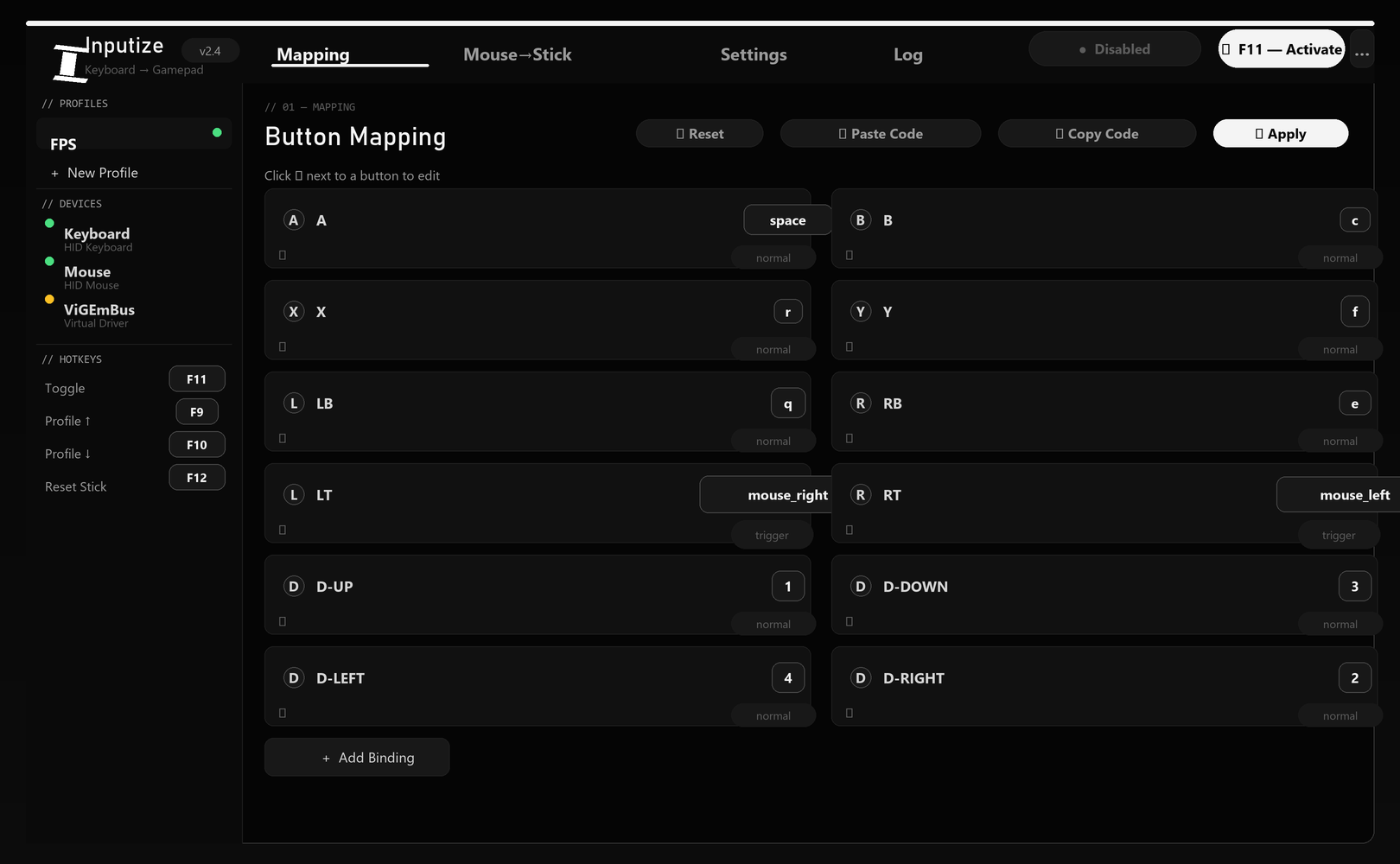
- Logo and version — on the left; the version sits in a small badge.
- Profile actions — ⧉ Copy Code / ⧉ Paste Code (share the whole layout as a text string) and the big Enable emulation {{F8}} button with the live ● status chip.
- Apply — saves and applies profile changes instantly.
- Settings (gear icon) — global program settings; Copy — copies the profile code.
3.2. Sidebar
The left sidebar groups everything by purpose. The four views are: Controller (buttons & triggers), Sticks (mouse → right stick), Aim (aim assist, anti-recoil, RC filter) and System (driver, per-game config, log). Below the views: the // PROFILES list — the active profile is highlighted with a green dot; + New Profile creates a new one.
3.3. Controller view
A grid of cards: for every gamepad button (A, B, X, Y, LB, RB, LT, RT, D-pad, sticks) the assigned key and mode are shown. The ✏ button opens the bind editor. Below the grid: Triggers — LT/RT mode (analog / digital) and thresholds. See section 6 for details.
3.4. Sticks view
Everything that shapes the sticks, on one screen: the live Response preview (the curve chart), Mouse sensitivity (hip / ADS, axis multipliers, boost, mouse deadzone), Stick deadzones (per-axis / circular, anti-deadzone, max zone, circularity, Flick-Stop), Smoothing presets and the Input monitor with live RS-X/RS-Y values. See sections 7–8 for details.
3.5. Aim view
Aim-assist and recoil shaping: Orbital ADS aim assist, Anti-Recoil compensation and the RC Filter. See section 8 for details.
3.6. System view
Driver status and install (ViGEmBus), stick poll rate, per-game auto-config, one-click game templates, the in-game overlay toggle and the Log with ✕ Clear and 💾 Save buttons.
// 04 · QUICK START
4. Quick Start
- Run
Inputize-Emulator.exeand activate the license (if not activated yet). - The app checks / installs the ViGEmBus driver automatically on launch (one UAC confirm if needed).
- Make sure the FPS profile (the default) is selected in the profile list.
- Launch the game and open its control settings — select the Gamepad / Xbox 360 mode if the game allows it.
- Press F8 (or the Enable emulation button) — the indicator turns Active, and the overlay (if enabled) shows a green dot.
- Play: WASD — movement, mouse — look, Space — jump, LMB — fire, RMB — aim.
- Press F8 again to stop emulation.
// 05 · HOTKEYS
5. Hotkeys
| Key | Action | Note |
|---|---|---|
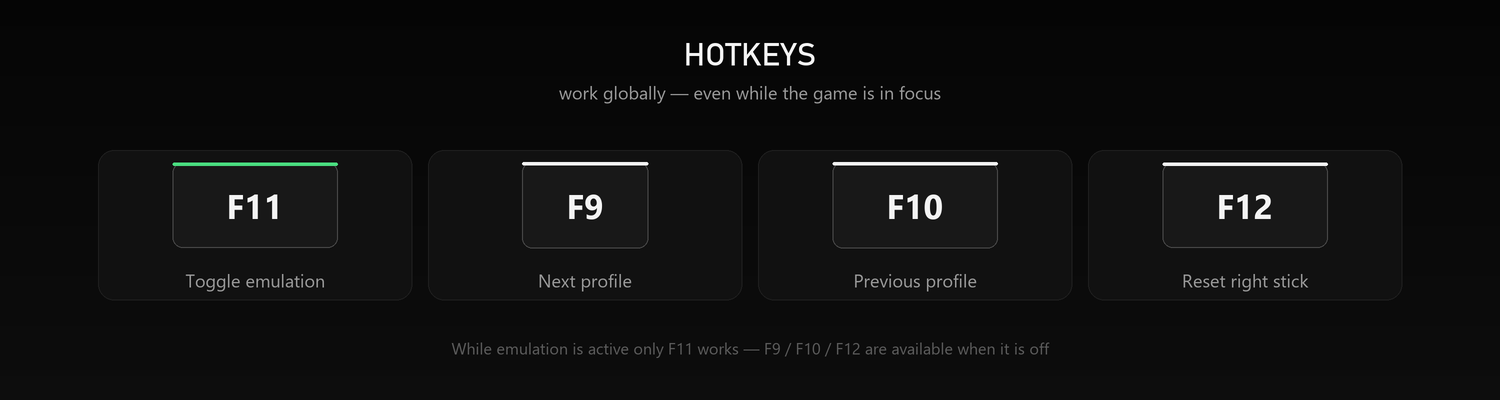
| F8 | Enable / disable emulation | always works, even in-game |
| F9 | Next profile | only while emulation is off |
| F10 | Previous profile | only while emulation is off |
| F6 | Reset the right stick to center | only while emulation is off |
All four keys can be reassigned in Settings → Hotkeys (section 11.4). If one key is assigned to two functions, the program warns about the conflict — only the first assignment works.
A mouse button can be assigned to any of them too: Mouse 4 and Mouse 5 (the side buttons) and the wheel press are accepted wherever a key is. Click the hotkey field and press the side button — the field shows «Mouse 4 (side)». Left and right click are deliberately not bindable (a stray click would toggle emulation mid-fight). The toggle button works in both states: while emulation runs it stops it, and outside a session it starts it.
// 06 · BUTTON MAPPING
Reading done — time to try it
The manual describes the app; the app is where it makes sense. One €19.99 license, lifetime updates, all sales final.
Buy Inputize — €19.996. Button Mapping
6.1. Default layout (FPS profile)
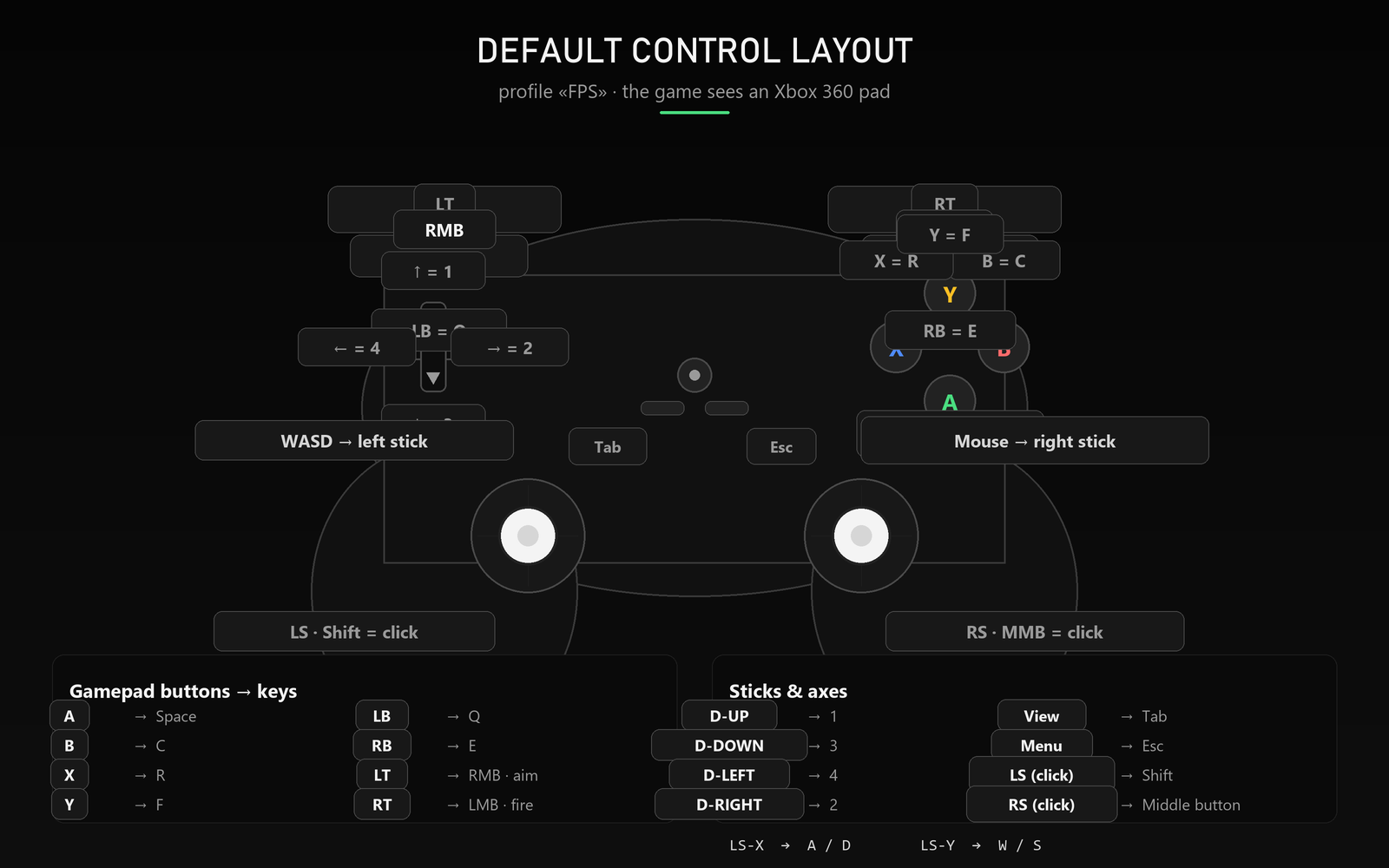
The layout is designed for first-person shooters: movement — WASD, look — mouse, crouch — C, reload — R, interact — F, aim — RMB, fire — LMB, weapon slots — keys 1–4.
6.2. Full default mapping table
| Gamepad button | Key | Gamepad button | Key |
|---|---|---|---|
| A (jump) | space | D-UP | 1 |
| B (crouch) | c | D-DOWN | 3 |
| X (reload) | r | D-LEFT | 4 |
| Y (interact) | f | D-RIGHT | 2 |
| LB | q | View / Back | tab |
| RB | e | Menu / Start | escape |
| LT (aim) | mouse_right | LS (click) | shift |
| RT (fire) | mouse_left | RS (click) | mouse_middle |
| LS-X (left stick) | a / d | RS-X (right stick) | mouse_x |
| LS-Y (left stick) | w / s | RS-Y (right stick) | mouse_y |
6.3. Bind editor
Click ✏ next to a gamepad button — the Binding window opens. Click the capture field and press the key (or mouse button — for example mouse_left, mouse_right, mouse_middle, the wheel). For stick axes the two directions are bound separately.
Available modes:
| Mode | Behavior |
|---|---|
normal | The gamepad button is held while the key is held (standard). |
hold | Hold — the button stays pressed for as long as the key is held. |
toggle | Latch: one press holds the button, the next press releases it. |
turbo | Auto-repeat of presses while the key is held. Rate — 1–60 presses/s (Turbo rate). |
double | Double tap: two quick button ticks on a double key press (within ~300 ms). |
combo | Key combination such as ctrl+c or shift+r — fires when all parts are held. |
trigger | Analog trigger: pressed — full value, released — zero. |
axis | Stick axis: two keys for opposite directions (e.g. a/d). |
macro | Macro — a timed sequence of virtual gamepad button presses played on a key press (see below). |
You can also tick the modifiers Ctrl, Shift, Alt, Win, or write a combination like ctrl+... straight into the key field for axes.
Macro sequences
A macro plays a timed sequence of virtual gamepad button presses when you press its trigger key. In the bind editor, switch the mode to Macro - the Key field above becomes the trigger, and the macro editor opens below as a step list. Build the sequence by adding one action per row:
- Buttons - pick the pad button(s) of the step from the row selectors; a step can hold up to three buttons, pressed and released together as one combo (e.g. A + B).
- Hold ms - how long the step stays pressed;
0(default) is a quick tap. - Wait ms - the pause before the step fires (
0by default). - +/- ms (jitter) - randomizes that wait so long auto patterns read as human input rather than bot-perfect timing (
0by default; values 0-10000 ms).
Row buttons let you add a step at the end, move a step up or down, add/remove combo buttons inside a step, and delete a step. The preview line above the list shows the full sequence in the shareable text format (e.g. A+B @200 = press A and B together for 200 ms; A +150 ~15 @200 = wait 150 +/- 15 ms, then press A for 200 ms) - the same format Copy Code / Paste Code uses when you share a layout.
Repeat (optional): below the step list, set how many times the whole sequence plays (1-250) and the interval between runs (0-5000 ms), or check endless while key is held - the sequence loops from the moment you press the trigger until you release it. A fixed repeat count is fire-and-forget: the runs complete even if you release early.
Pressing the trigger again restarts the sequence from the beginning - the previous run is stopped cleanly and releases everything it was holding. The sequence always runs to completion, so multi-button combos are never cut mid-way.
6.4. Reset and apply
- ↺ Reset — restore the current profile layout to defaults (with confirmation).
- ✓ Apply — apply the changes and save the profile.
- ⧉ Copy Code / Paste Code — copy the whole profile config as a text string or paste someone else's (great for sharing layouts with other players).
// 07 · MOUSE → RIGHT STICK
7. Mouse → Right Stick
This is the heart of the emulator: mouse movement is converted into an analog right stick in real time. All settings live on the Sticks view and apply instantly — many of them without a restart.
7.1. Sensitivity
| Setting | Range | Default | Purpose |
|---|---|---|---|
| Hip Fire | 0–100 | 10 | Base aim sensitivity (not aiming) |
| ADS (hold RMB) | 0–100 | 5 | Sensitivity while RMB is held — lower for more precise aiming |
| X (horizontal) | 0.10–3.00 | 1.00 | Horizontal axis multiplier |
| Y (vertical) | 0.10–3.00 | 1.00 | Vertical axis multiplier (1.00 = symmetrical with X) |
7.2. Response curves
A curve defines how mouse speed maps to stick deflection. Every preset curve carries a strength slider from -100 to 100: 0 is the curve switched off (a plain Linear 1:1 response), +100 is the full shape of the selected curve, and a negative value is its inverse — the same shape mirrored across the diagonal, so a quick launch becomes a slow one. The two ends never move: no input is still no output, full deflection is still full deflection. “Linear” is the plain 1:1 diagonal.
Custom turns the chart into an editor: it opens with six handles (plus the two locked corners) — drag a round handle to shape the response, right-click a handle to remove it. Clicking the chart itself never changes the shape, so a stray click cannot disturb your points; Resting the pointer on a handle (or dragging it) shows a tooltip with that point’s coordinates — X is the mouse input, Y the stick output, both in % — so a shape can be placed by numbers instead of by eye. Dragging re-spaces the other points proportionally, so the curve keeps its shape instead of flattening. To add a point, use the + Point button (it inserts one in the widest gap); Reset returns the shape to the neutral line. Custom has no strength slider: the shape you draw is exactly what the pad gets (soften it by pulling the points toward the straight line, sharpen it by pulling them away), and it is stored inside the profile. Under the chart you can name the shape and Save shape it: saved curves belong to the app, not to a profile, so one curve can be loaded from every profile (pick it in the dropdown, Delete to remove it).
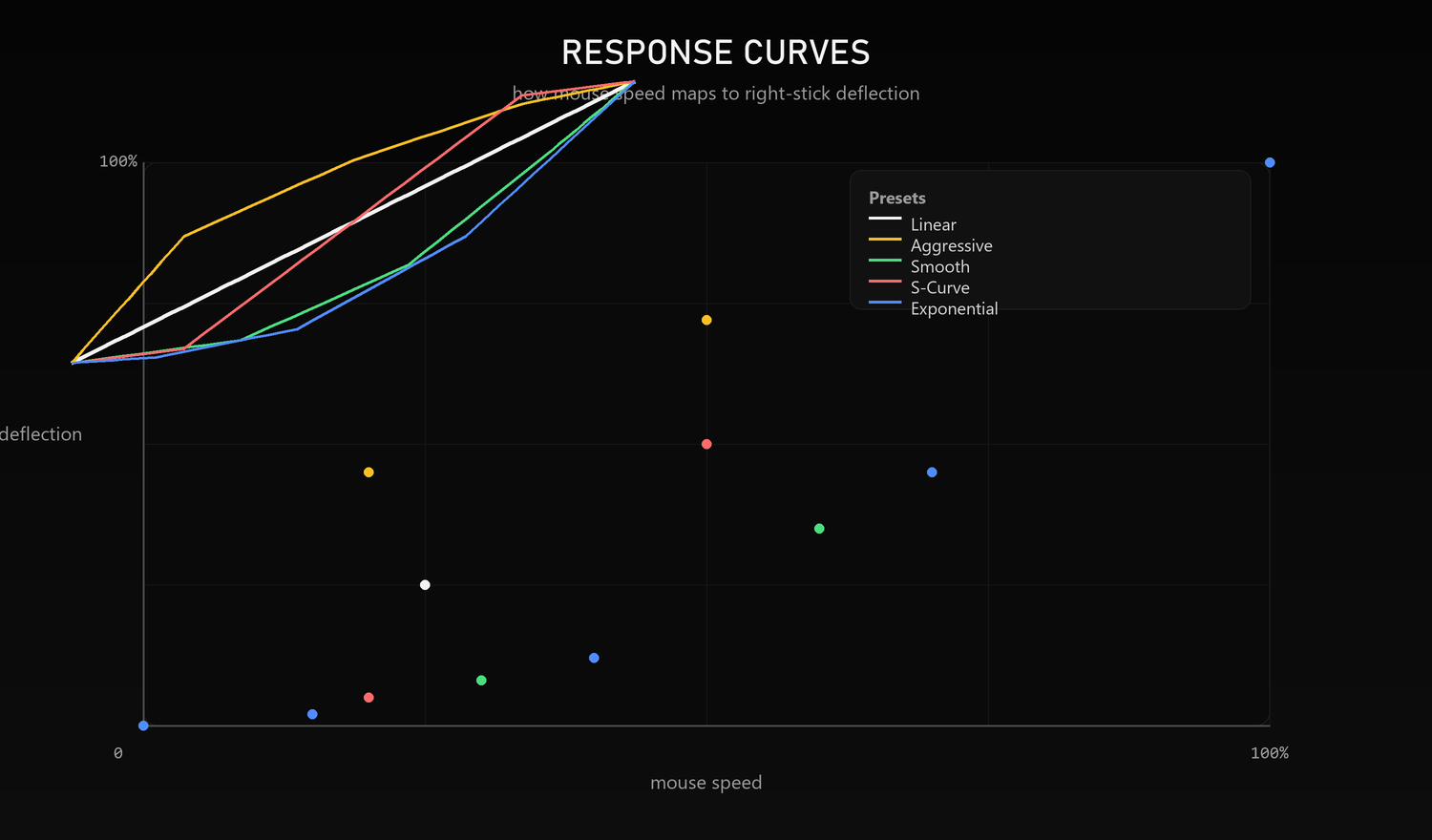
| Preset | Behavior |
|---|---|
Linear | Direct 1:1 mapping — predictable and precise. |
Aggressive | Reaches large deflection quickly — sharp turns. |
Smooth | Smooth start, precise fine-tuning at low speeds. |
S-Curve | A smooth sigmoid: gentle at the start and finish, confident through the middle. |
Exponential | Soft center, aggressive flicks. |
Custom | Your own control points, drawn on the chart (6 handles to start, up to 16). |
7.3. Smoothing
Smoothing averages frames of mouse movement — the aim becomes steadier and hand micro-jitter disappears. Ready-made presets (one click) or manual tuning (Custom mode):
| Preset | Description |
|---|---|
Off | Raw input - no smoothing at all (the shipped default). |
Competitive | Minimal smoothing, maximum flick responsiveness. |
Precision | Maximum precision at low speeds (fine aim). |
Balanced | A balance of smoothness and response — universal starting point. |
Smooth | Strong smoothing, removes micro-jitter. |
Synchro | Classic stable EMA. |
Smoothing mode: Off (raw input) - mouse speeds go straight to the stick with no filter (the shipped default); Standard (Dynamic) - adaptive, stronger at low speeds and weaker on flicks; Classic (Static) - a fixed EMA. The Adaptive checkbox enables speed adaptation (standard mode only). Direct stick (raw position) - bypasses the position attack/release EMA so the stick jumps straight to its target (on by default: the sharpest reversals). Mouse deadzone (px/s) - movements slower than the threshold are ignored (0 by default; raise it a few points if the crosshair trembles at rest): it kills hand jitter and sensor drift.
7.4. Conversion shaping
The conversion pipeline is a fixed chain — smoothing → curve → return. What you tune in the Sticks view:
| Control | What it does |
|---|---|
| Mouse Boost | Extra gain on fast mouse movement — snappier flicks (off by default - enable if flicks feel slow). |
| Flick-Stop | Abrupt mouse stop collapses the stick return to ~35 ms so the stick doesn't “over-rotate” after a flick (off by default). |
| Adaptive (smoothing) | Stronger smoothing at low speeds, weaker on flicks (standard mode only, off by default). |
| Mouse deadzone | Movements slower than the threshold (px/s, 0 by default) are ignored — kills hand “rest” jitter. |
| Circularity | 0–100 % ring shape: diagonals don't over-deflect into corners. |
Stick return (the stick settles to center when the mouse stops): Return delay (0–500 ms, default 50) — the pause before the return; Return speed (0–500 ms, default 60) — how fast it settles (lower is snappier).
// 08 · ADVANCED SETTINGS
8. Advanced Settings
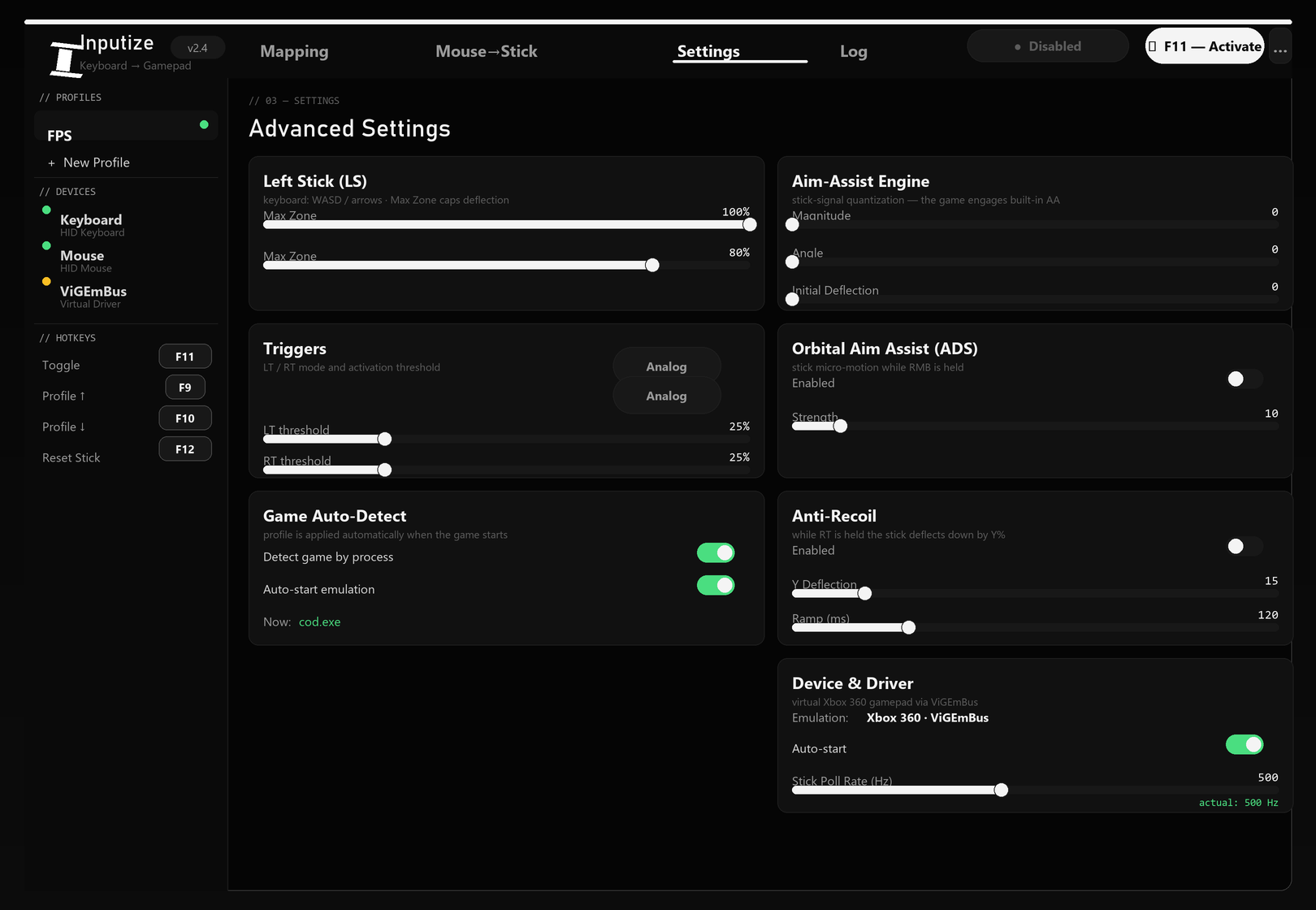
8.1. Sticks: deadzones and caps
| Setting | Range | Default | Purpose |
|---|---|---|---|
| LS · Deadzone / Anti-deadzone | 0–50 % / 0–100 % | 0 | Left stick deadzone and edge lift (Sticks view) |
| RS · Deadzone / Anti-deadzone | 0–50 % / 0–100 % | 8 % / 0 | Right stick deadzone — removes drift near the center |
| LS / RS · Max Zone | 0–100 % | 100 % | Deflection cap (stops the stick short of full travel) |
| Circularity | 0–100 % | 100 % | Ring shape of the response: 100 = circular (diagonals don't over-deflect), lower = squarer |
The left stick is driven by the keyboard (digital input — full press); its own deadzone only matters for analog axes, but the Max Zone cap applies to it as well.
8.2. Aim-Assist Engine
Signal shaping that makes the game treat the stick as a real analog controller and apply its built-in aim assist more strongly:
| Setting | Purpose |
|---|---|
| Magnitude (0–100) | Quantizes deflection magnitude into discrete steps. |
| Angle (0–100) | Quantizes the stick angle. |
| Magnitude Speed (0–100) | Quantization that grows with mouse speed: slow corrections stay smooth, flicks become coarse steps. |
| Initial Deflection (0–100) | Minimum deflection level while moving — for games with a wide stick deadzone. |
| Turn Speed Cap (0–100) | Drops excess speed at full deflection — the stick doesn't over-rotate after a flick. |
8.3. Orbital Aim Assist (ADS)
While RMB (aim) is held and the mouse is still, the right stick traces a slow circular micro-motion — the game never sees a dead stick and keeps its built-in aim assist active. Strength is the circle radius (up to 20 % of stick travel). It works only in ADS; in normal mode it is off so it never interferes with precise holding.
8.4. Anti-Recoil
While fire (RT) is held, the right stick is additionally deflected by the set X/Y — the camera kick is cancelled with a stick push down. X > 0 — right, Y > 0 — down (the recoil-compensation standard).
| Setting | Range | Default | Purpose |
|---|---|---|---|
| Enabled | on/off | off | Turns recoil compensation on |
| X Deflection | −100…+100 % | 0 | Horizontal component |
| Y Deflection | −100…+100 % | 15 | Vertical component (down) |
| Ramp | 0–500 ms | 120 | Smooth entry — no yank the moment you start firing |
| Release | 0–500 ms | 120 | Smooth return after releasing fire |
| Delay | 0–500 ms | 0 | Pause before compensation starts |
8.5. SAB — humanized stick ramps
Real thumbs never move a stick 0→100 % in one tick — emulators that do leave a machine-perfect edge. SAB (Simulate Analog Behavior) replaces those edges with human-rate ramps. Two independent cards on the Sticks view, one per stick:
| Card | Master slider | What it does |
|---|---|---|
| Movement SAB — left stick | 0–100 | WASD presses ramp to full deflection over an eased human S-curve (~20 + value ms). Variance wobbles each gesture's timing (±15 %, re-rolled on a human cadence) and Micro adds a tiny edge texture — no repeated identical edge for heuristics to flag. Ships at 0 (off) — at Variance 0 it reproduces the legacy ramp exactly. |
| Aiming SAB 2 — right stick | 0–100 | The mouse-driven aim follows the same human-rate pipeline plus the Inertia / Micro / Limit / Variance sub-values. The Apex and Warzone game templates ship pre-tuned values — raise the master to feel them. The Input monitor shows it live: ring = target, dot = pad output, LAG % = the ramp itself. |
8.6. Triggers (LT / RT)
- Analog — the trigger passes its real travel (for
LT-ANALOG/RT-ANALOGbindings). - Digital — the trigger instantly snaps to 100 % once the threshold is crossed.
- Threshold — 0–100 %, 25 % by default; applies to analog trigger bindings, keyboard bindings are always digital.
- LT/RT SAB (press ramp) — the trigger squeeze ramps instead of snapping 0→100 % (0 = instant, 100 = ~120 ms) — the same human-rate idea for triggers.
8.7. Auto ping & YY spam (Controller view)
Two one-key per-game tricks, both shipping pre-configured in the game templates and rebindable to any pad button:
- Auto ping — while you fire, the ping button is tapped once per trigger pull (never repeating while fire is held — the ping wheel would block aiming). The Warzone template ships D-Pad Up, Apex ships RB; set Off to disable.
- YY spam — while your bound key is held, the pad taps Y twice in a human double-press rhythm, cancelling reload / armor-plate / weapon-raise animations Warzone-style. Bind the trigger to any key or mouse side button (the Warzone template ships Mouse 4); the tapped pad button defaults to Y.
8.8. Always-held button (per profile)
In Controller → Mappings, a pad button can be held CONSTANTLY for the whole session (auto-sprint / always-ADS / hold-to-move). For some games — e.g. Apex Legends — it must stay ON so the virtual gamepad remains in an active state and native mouse input never overrides it. That is why the Apex Legends and Warzone game templates turn it on for you (LS (L3), the hold-to-move button in the default layout). It ships OFF otherwise: a held stick CLICK does something in every game — L3 is sprint in most shooters — so enable it deliberately. Saved per profile.
8.9. Device & Driver
- Emulation is fixed as Xbox 360 · ViGEmBus — this is exactly the controller the game sees.
- Auto-start — launch the program with Windows (HKCU registry entry, no admin rights needed).
- Stick Poll Rate (Hz) — 125–1000 Hz, 500 by default. How often the stick state is reported to the game. A live actual: … Hz indicator sits next to it (green ≥90 %, yellow ≥60 %, red — the engine can't keep up).
- MMCSS “Games” thread — registers the engine thread with Windows as a game/audio task (lower latency, less timer dithering); applies live. On by default. Pin engine thread to P-cores — for hybrid Intel CPUs (off by default). Both live in System → Engine.
8.10. Game auto-detection
When a game whose process name is listed in the profile starts, the program automatically switches to that profile and (per the setting) starts emulation; when the game closes it stops and restores the previous profile. Process names are set in the profile file profiles/00_*.json in the process_names field, e.g. cod.exe, r5apex.exe.
// 09 · PROFILES
9. Profiles
A profile is a complete set of settings: button layout, mouse parameters, curves, smoothing, anti-recoil, deadzones, triggers, poll rate and the list of game processes. You can make a separate profile for every game.
9.1. Creating and switching
- Click + New Profile in the sidebar and enter a name (e.g. “Warzone”).
- Set up the layout and mouse parameters on the Controller and Sticks views.
- Switching: click a profile name in the list or use F9 / F10 (while emulation is off).
- The active profile is marked with a green dot; all changes are saved automatically.
9.2. Sharing profiles (Copy / Paste Code)
⧉ Copy Code in the header or sidebar copies the whole profile config as one text string — you can send it to a friend. ⧉ Paste Code applies a pasted config. This is the main way to share layouts; it fully replaces file export/import.
9.3. Auto-applying by game
Turn on Auto-detect game in Settings (or bind a process per profile in the System view → Per-game auto-config): when a process from the profile's process_names runs, the right layout is applied and emulation can start automatically (Auto-start emulation). The current game is shown in the status line.
// 10 · OVERLAY & SYSTEM TRAY
10. Overlay & System Tray
10.1. Overlay above the game
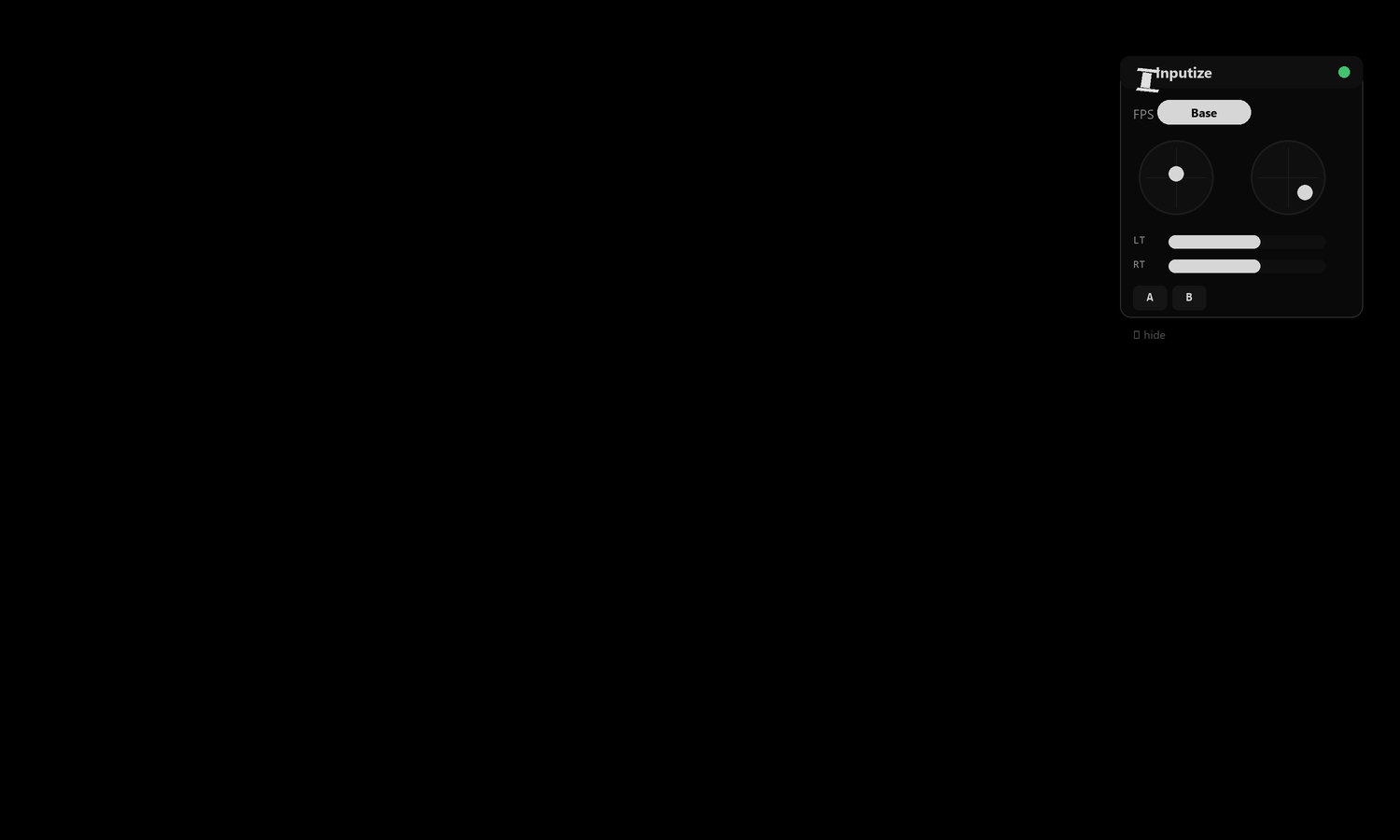
A transparent window above the game shows: emulation status (green dot), active profile, live session stats (keys, mouse moves, latency, wheel) and a real-time gamepad with the current stick positions and held buttons. The window is always on top, draggable by its header; the ✕ button hides it until re-enabled. S / M / L resize it, and stats switches to a compact stats-only mode.
- Show/hide: the ◉ Toggle overlay button in the System view or the
Overlaysetting. - Size: S / M / L buttons in the overlay header; stats switches to a compact stats-only mode.
- Position: top-right / top-left / bottom-right / bottom-left.
- Opacity: 10–100 % (Settings → Overlay opacity).
10.2. System tray
Closing the window (✕) minimizes the program to the tray instead of quitting (the Minimize to tray setting). A click on the icon opens the window; right-click opens a menu: Show / Hide, a live Emulation: ON/OFF toggle (works right in the middle of a game) and Quit.
// 11 · APPLICATION SETTINGS
11. Application Settings
The Settings button (gear icon) in the header opens the global application settings (not per-profile). Contents:
11.1. Behavior
- Start minimized — launch with the window hidden.
- Minimize to tray — minimize to the tray when the window is closed.
- Auto-detect game — auto-apply the bound profile when its game process runs.
- Auto-start emulation — start emulation together with the detected game.
- Desktop shortcut — create a shortcut on the desktop.
- Check for updates — look for new versions at startup.
11.2. Pad type
Choose the virtual gamepad presented to the game: Xbox 360 (default) or DualShock 4. This is a presentation-level choice — bindings and mouse-to-stick behavior are identical for both.
11.3. In-Game Overlay
- Overlay — show the overlay.
- Position — screen corner: top-right, top-left, bottom-right, bottom-left.
- Opacity — 0.1–1.0.
11.4. Hotkeys
Reassign the four global keys: Toggle emulation (F8), Next profile (F9), Previous profile (F10), Reset stick (F6). Click a field and press the new key. If two functions get the same key, the field turns red and a conflict warning appears.
The field also accepts a mouse button: press Mouse 4 / Mouse 5 (the side buttons) or the wheel press while the field is armed. The value is shown as «Mouse 4 (side)». The wheel press and the side buttons are the only mouse buttons accepted — left and right click stay ordinary fire/aim buttons.
11.5. Drivers
Driver status and install live in the System view → Driver card: “✓ Installed and working”, “⚠ Installed — reboot required” or “✕ Not installed”. Check driver re-reads the status, Install ViGEmBus automatically runs the same one-click installer used at first run, and ⟳ Check for updates looks for a new program version.
11.6. Performance & Misc
- Max log lines — the log length (50–2000 lines, System view → Log).
- Check for updates — background update checks at startup; the ⟳ Check for updates button in the System view checks manually.
// 12 · FAQ
Everything here is in one license
Curves, deadzone, anti-recoil, macros, hotkeys and per-game profiles — €19.99 once, every future update included.
Buy Inputize — €19.9912. FAQ
The game doesn't see the gamepad
- Make sure the ViGEmBus driver is installed (System view → Driver → Check driver).
- Reboot the computer after installing the driver.
- Press F8 or the Enable emulation button — the indicator should turn Active.
- In the game's settings choose gamepad (Xbox 360) controls if the game allows it.
- Check the System view → Log — it shows whether emulation is running and any errors.
The mouse isn't converted to a stick
- Emulation must be active (green indicator / F8).
- The right stick is the mouse by design — the aim axes (RS-X/RS-Y) are wired to
mouse_x/mouse_yand have no cells in the mappings grid, so there is no binding to check there. - Check the sensitivity on the Sticks view — if it is zero, the stick won't move.
Will an anti-cheat block me?
ViGEmBus is an open virtual-gamepad driver used by thousands of programs (DS4Windows and others). Emulation happens at driver level, the game sees an ordinary controller, and the program does not inject into the game process. That said, online-game rules may ban any third-party tools — the decision to use it and the associated risk are yours.
F9/F10/F6 don't work in-game
That's expected: while emulation is active only the toggles work (F8 and the tray). Turn emulation off and the other hotkeys work again.
A hotkey doesn't fire at all
Another program may already own the combination. Assign a different key in Settings → Hotkeys — the program shows conflicts right away.
The activation window reappeared after I already activated
The license file lives in %APPDATA%\Inputize\license_emulator.json. Deleting it re-enables the activation window — enter your key again. Once activated and working offline, the window should not appear.
Where are profiles and settings stored?
In the portable build — %APPDATA%\Inputize\: profile files (profiles/*.json), settings (profiles/_settings.json), the license (license_emulator.json) and logs (logs/).
// 13 · TROUBLESHOOTING
13. Troubleshooting
| Symptom | Cause | Solution |
|---|---|---|
| SmartScreen on launch | File is unsigned | More info → Run anyway; the ViGEmBus driver is Microsoft-signed |
| “Installed — reboot required” | Driver installed, reboot needed | Restart the computer |
| ViGEmBus install fails (code 1603 etc.) | System restrictions | Download the installer from github.com/ViGEm/ViGEmBus/releases and install manually |
| The overlay doesn't appear | Disabled in settings | System view → In-game overlay → ◉ Toggle overlay; or Settings → Overlay |
| Emulation is on but the stick doesn't move | Sensitivity is 0, or emulation is off | Check the sensitivity on the Sticks view (a 0 makes the stick sit still) and that the indicator reads Active |
| A game “freezes” the mouse | The game grabs the cursor while a gamepad button is held | Emulation uses virtual-gamepad output only — your real mouse is never blocked. If the game itself hides the cursor, lower the sensitivity or check the game's own input settings |
| Actual Hz below the declared value | Weak hardware / background load | Lower the Poll Rate in the System view → Driver card (e.g. 250–500 Hz) |
| The program won't start | Broken deps/cache | Delete %APPDATA%\Inputize and run again; check inputize-emulator_crash.log |
// 14 · FAIR PLAY & SAFETY
14. Fair Play & Safety
- Inputize works at the ViGEmBus driver level — the game sees an ordinary Xbox 360 gamepad; the program never touches game memory or runs scripts inside it.
- The program reads only the keyboard, the mouse and its own virtual gamepad state; the only network traffic is license/update checks.
- The license key is bound to your account and stored locally; your account password is never saved anywhere.
- Using the emulator in online games is your responsibility: review the rules of the specific game. Game developers may consider any third-party tool a violation.
// APPENDIX A
Appendix A. Profile parameter reference
A profile is a JSON file in the profiles/ folder. Main fields:
| Field | Type | Default | Purpose |
|---|---|---|---|
name | string | FPS | Profile name |
icon | string | 🔫 | Emoji icon |
process_names | array | [] | Game processes for auto-detection (e.g. cod.exe) |
mappings | object | — | Button bindings (see 6.2) |
mouse_sensitivity | object | hip 10 / ads 5 | Hip and ADS sensitivity |
mouse_sensitivity.x_mult/y_mult | number | 1.0 / 1.0 | Axis multipliers |
active_curve | string | Linear | Active response curve |
curve_intensities | object | 100 | Intensity of each curve |
smooth_preset | string | Off | Smoothing preset or Custom |
smooth_mode | string | off | off (raw) / standard / classic / kalman |
smooth_kalman | number | 50 | Kalman smoothing strength, 0 (near-raw) .. 100 (heavy) |
mouse_boost | bool | false | Boost on flicks |
stick_direct | bool | true | No position EMA - stick jumps straight to target |
flick_stop | bool | false | Collapse stick return after an abrupt stop |
mouse_deadzone | number | 0 | Mouse speed deadzone, px/s |
return_delay_ms | number | 50 | Stick return delay |
return_time_ms | number | 60 | Stick return speed |
recoil_comp | bool | false | Anti-recoil |
recoil_x / recoil_y | number | 0 / 15 | Stick offset while firing, % |
recoil_ramp_ms / release_ms / delay_ms | number | 120 / 120 / 0 | Anti-recoil smoothness parameters |
quant_mag / quant_angle / quant_mag_speed | number | 0 | Aim-assist quantization |
init_deflection | number | 0 | Initial stick deflection |
cap_drop | number | 0 | Turn Speed Cap |
orbital_ads_aa / orbital_ads_strength | bool / number | false / 10 | Orbital AA in ADS |
deadzone_ls / deadzone_rs / max_zone_ls / max_zone_rs | number | 0 / 0 / 1.0 / 1.0 | Stick deadzones and caps |
trigger_mode_lt / trigger_mode_rt | string | analog | Trigger mode |
lt_threshold / rt_threshold | number | 25 | Trigger thresholds, % |
poll_rate_hz | number | 500 | Stick report rate (125–1000) |
// APPENDIX B
Appendix B. Files & folders
%APPDATA%\Inputize\
├── license_emulator.json     — license cache (delete to activate again)
├── profiles\                 — profiles (*.json)
│   └── _settings.json        — global application settings
└── logs\                     — inputize-emulator.log (rotated 5 × 1 MB)

next to the exe: inputize-emulator_crash.log — crash log// APPENDIX C
Appendix C. Hotkey summary
| Key | Action | Available |
|---|---|---|
| F8 | Enable / disable emulation | Always, including in-game |
| F9 | Next profile | Emulation off |
| F10 | Previous profile | Emulation off |
| F6 | Reset right stick | Emulation off |
| Mouse 4 | Unassigned — can be set to any hotkey above | Always, once assigned |
| Mouse 5 | Unassigned — can be set to any hotkey above | Always, once assigned |
| LMB | RT (fire) | In-game, while emulation is active |
| RMB | LT (aim) | In-game, while emulation is active |